
Watch the story
Your narrated video
Show the full workflow with narration, zooms, captions and your branding. Add an optional AI presenter on a paid plan.
Download the MP4 for launches, social posts, sales messages and your website.
Glimeo is an AI product demo video creator for SaaS founders, product marketers, sales, onboarding and support teams. Give it your product URL and a task. It records the steps, writes the script and narrates the walkthrough.
One video with AI narration free. No card needed. Talking presenters on paid plans.
A demo video to watch. An interactive demo to click through. Together, they’re a glim.
Make an eclipse with two shapes.
Your Loom. Your onboarding video. Your product demo. Made by AI. Aria slides the purple moon over the sun to form a crescent.
Paste a link and describe what to explain.
Review what the video will show and say.
Review your video and interactive demo, then share your glim.
AI-guided recording is in beta. Private apps may need your help. See how it works
The editor comes with it
Want a different look? Change the words, adjust a zoom or add your branding. Ask AI or use the Studio editor.


“Zoom in on the checklist and extend the final scene to 6 seconds.”
Choose a presenter. Or bring yourself. Your own picture and voice on Pro and Business.
Try a change with confidence. Preview, undo, redo or restore a saved version.
Trim and reorder scenes. Change captions, music and branding. Cover private details before sharing. See the editing tools New recordings, voices and presenter generation keep their usual costs.
Smooth zooms and more
Bring a detail closer with smooth zooms. Add a magnifier, a spotlight or a note exactly where it helps.
Follow the action, without losing the story.
Add chapter indicators, click highlights and cursor guidance. Keep every step easy to follow. Explore the creative tools
The interactive half of your glim
Your glim includes an interactive demo. Viewers click the highlighted areas to move through your recorded product screens, without logging in or changing your live product.
Review it, then share or embed it. Included with supported recordings—no second recording or extra conversion credits.
See where people click—and where they stop. Track starts, completions and final-button clicks.
See how interactive demos work
4 tasks complete
These are the two tasks still to finish.
Follow the highlighted steps to find the unfinished launch tasks.
Try Glimeo before you sign up
Click the highlighted area or use Next to move through Glimeo Studio. Five steps, no signup.
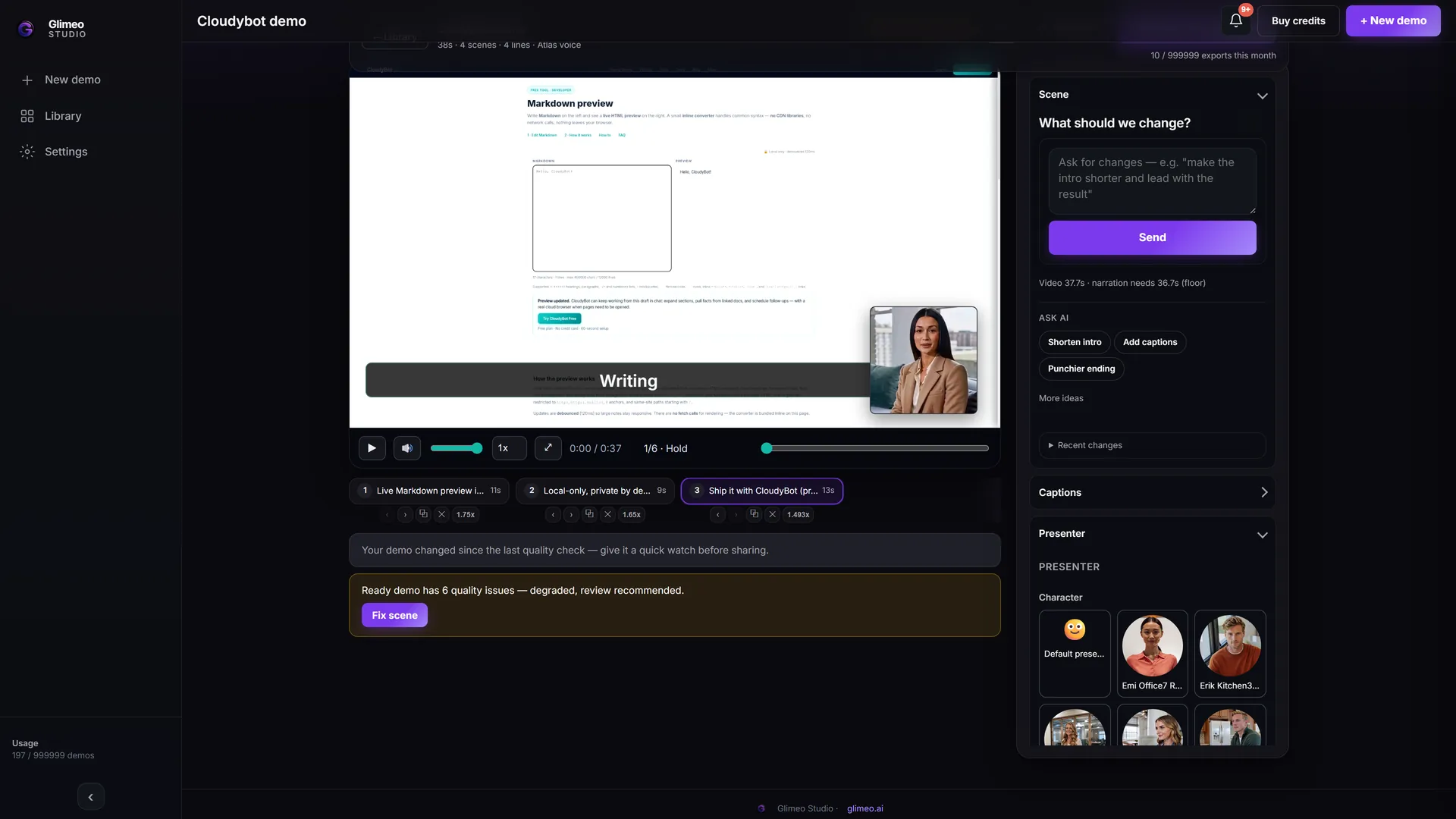
Glimeo records your product and narrates the steps. Watch the result here in Studio.
Help more people understand
Start in English. Add narration and captions in seven more languages. Keep the same product screens and share the language versions with one link.
Video language versions are in Beta. Additional credits apply.
Review each version before sharing. Explore languages
Voice & presenter sample · Spanish
Optional WhatsApp updates
Get a message when Glimeo needs your approval or help, or when your video is ready.
Connect and opt in from StudioKeep your demo up to date
Refresh compatible screens while keeping your voice, presenter and published link. Included on paid plans. Review each update, or let Glimeo apply it automatically.
Product demo video creator · Your demo package
Your product, explained beautifully. Glimeo’s AI demo agent walks through your app in a real browser and turns the flow into a video with narration, smooth zooms and an optional presenter. A glim brings your product story together: a narrated video to watch, and an interactive walkthrough to explore from the same supported capture. One captured flow, ready for different ways people learn and buy.
Watch the story
Show the full workflow with narration, zooms, captions and your branding. Add an optional AI presenter on a paid plan.
Download the MP4 for launches, social posts, sales messages and your website.
Try the steps Included
Let visitors click highlighted controls, read each explanation and explore recorded screens at their own pace. No product login needed.
Share a link or embed the tour. Include your finished video so people can watch or explore.
Create the interactive version after your video is ready. Glimeo reuses the recording, so you do not record the flow or generate its voice and presenter again. Review the screens, descriptions and hotspots before sharing.
What is Glimeo? Read the overviewThe details make the demo
Smooth zooms bring the important control closer. Click highlights make each action easy to follow. Narration connects what people see to why it matters.
01
Automatic zooms follow the action so small controls and meaningful changes are easier to see.
02
Cursor and click highlights guide the eye through the workflow. Viewers can follow the action instead of hunting for it.
03
Clean cuts and pacing turn captured steps into a watchable walkthrough. Review the result before sharing.
04
Captions help viewers follow along. Download subtitle files or a captioned video for the places you publish.
A second way to experience your product · Included
The video tells the story. The interactive demo puts the next step in your visitor’s hands.
Clickable hotspots show exactly where to go. Descriptions explain the action. Each click takes visitors to the next captured screen, so they can understand your flow at their own pace.
From one capture to two experiences
Settle the story, voice and finish in Studio.
Prepare the interactive demo from your retained screens and actions.
Review descriptions, adjust hotspots and check privacy.
Send a link or embed the walkthrough beside your product story.
No second recording. No extra conversion credits.
For supported captures, including eligible free demos. Interactive demos use recorded screens; visitor clicks don’t change your live product. Hosting follows your plan.
Four ways to begin
Describe it · Beta
Share your URL and what to show. Review the plan before Glimeo records the flow.
Show it
Walk us through your product. Glimeo turns your walkthrough into a narrated story.
Record it
Record the walkthrough from start to finish, then shape the video in Studio.
Upload it
Bring an existing screen recording. Add narration, branding and an optional presenter.
Describe it is the main URL-led workflow. Other paths depend on the options available in Studio. Compare the starting options
Make it feel like you
Make the explanation as considered as the product. Review your script, choose a voice and add an optional talking presenter beside the real walkthrough.
Voiceover
Explain each moment with narration while the screen stays centre stage. A voiceover demo is included in the free trial.
Optional AI presenter · Paid
A lip-synced presenter delivers your narration alongside the product. Pro and Business also offer your own picture and voice.
Brand
Add your logo, colours and an intro or outro image or clip. Keep the walkthrough consistent with the rest of your launch.
Sound
Add background music and balance it against the narration. Keep the explanation easy to hear.
Formats
Choose landscape, portrait, square, 4:5 or 4:3. Review your layout, captions and framing before export.
Timing
Use the optional truth timer to show captured time alongside the edited video, where timing evidence is available. Studio labels the fallback when it isn’t.
Download your video, or share a reviewed video-and-interactive package with one link. Embed the interactive walkthrough on your website. See example demos
Your product changes. Your demo can keep up.
A moved button shouldn’t mean starting your demo from scratch. For supported workflows, Glimeo can refresh the screen footage and keep your approved narration and presenter. Your published link stays the same.
Turn on checks for a supported demo so interface changes can be picked up.
Compatible updates reuse the approved voice and presenter media. No need to regenerate them.
Review first, or explicitly enable automatic application. Material changes to the story or workflow need a new demo.
15 successful visual updates per paid account, per month. See plan details
Show the moment that matters
Explain a first task in the video, then let new users click through the same steps before opening your product.
Send the video for the story and the interactive demo for a closer look. Let prospects explore before the next call.
Post the launch video, then let visitors explore the new feature through an interactive demo on your landing page.
Pair a short explanation with clickable steps in your help centre. Let customers revisit the control or result they need.
Use a narrated overview for context and a recorded tour for the sequence, without giving learners access to a live account.
Give clients a campaign video and an interactive demo for their website from the same supported capture, with no extra conversion charge.
One voiceover demo, up to two minutes, in 720p with a watermark. No card needed. Talking presenters are available on paid plans.
Glimeo works with browser-based products. A private app may need a login or your help. Start with one focused task and a test account.
Yes. Edit clips, zooms, captions, branding and sound in Studio, or ask AI for supported changes. New recordings, voices and presenter generation keep their usual costs.
Conversion is included for supported finished captures, including eligible free demos. It needs retained screens and action data; an uploaded MP4 alone may not qualify. Hosting follows your plan.
Glimeo is an AI product demo video creator. Share your product URL and tell it what to show: its AI demo agent records the steps in a real browser, writes the narration and creates a demo video. Supported captures can also become an interactive demo. Glimeo is operated by CloudAxis Labs LLC and is not affiliated with Vimeo.
Yes. With Describe it (Beta), give Glimeo your product URL and the task you want to show. You review the storyboard, then the AI records the steps in a browser. You can edit the script before Glimeo creates the voiceover. Private apps may need your help signing in.
Product demos, onboarding guides, tutorials, launch videos and sales walkthroughs. Start with a URL, your own walkthrough or an existing recording.
Loom records you while you talk through your screen. Glimeo makes the product walkthrough for you: AI records the steps, writes the explanation and narrates the video. Loom is still a good fit for quick personal messages.
Create your video first. Open Interactive or choose Create interactive demo on the finished project. Glimeo prepares recorded screens and suggested targets. Review each step, adjust any hotspot or description, check privacy, then share or embed. Some captures need manual target review.
No. The interactive demo is a guided tour of recorded screens. Visitors click highlighted controls to move through the captured flow; their clicks do not change your real product or submit real forms.
Glimeo needs a retained recording with usable screens and action data. Studio checks the source before preparation; an uploaded MP4 alone may not contain enough evidence. Interactive sharing is not yet available for projects with published or publishing language videos.
Start in English, then add Spanish (Latin America), Arabic (Modern Standard), Hindi, Indonesian, Korean, Japanese or Malayalam. Additional languages are in Beta. The filmed product interface stays in its original language.
For supported workflows, visual updates replace compatible screen footage while keeping the existing voice and presenter. Review the update or choose automatic application. Paid plans include 15 successful updates per account each month. A changed story or workflow may need a new demo.
Yes. Connect WhatsApp in Studio and send the prepared message to opt in. Glimeo can notify you when the storyboard or narration needs review, when it needs your input and when your demo is ready. Messages link back to Studio. Updates need an active messaging window; if they pause, send a message to resume. You can turn updates off in Studio.
Something to show?
Paste your product link and tell Glimeo what to explain.
One video with AI narration free. No card needed. Talking presenters on paid plans.